Exness
How to Open a Free Exness Demo Account: Step-by-Step for Beginners
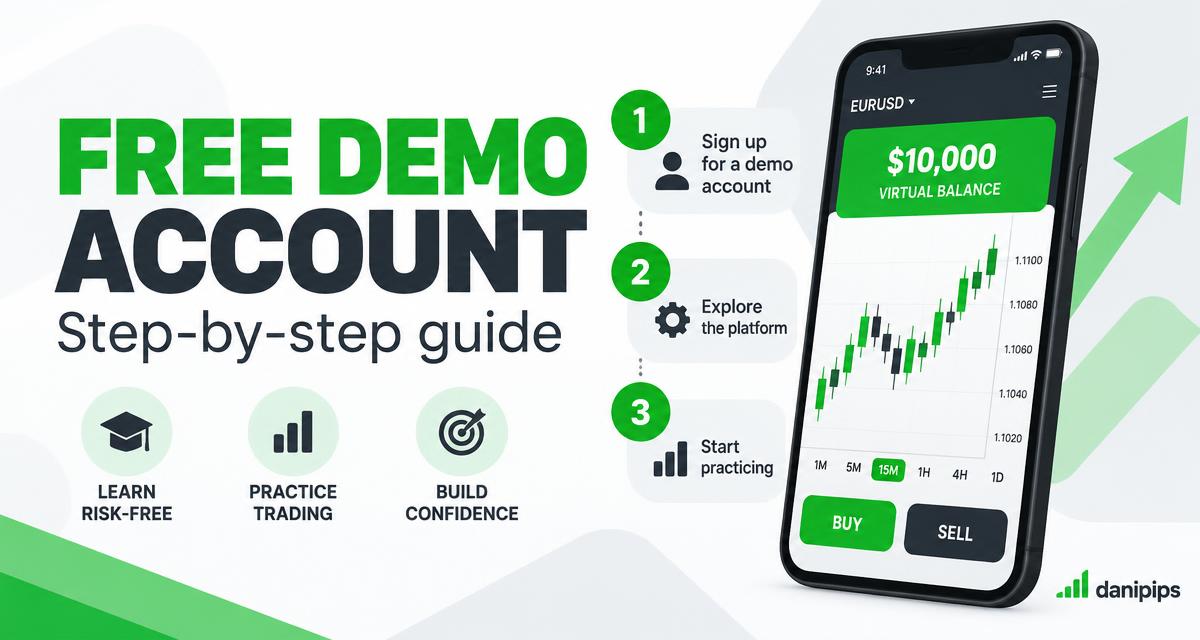
A demo account is the cheapest lesson in trading. Nothing is on the line except your time, and the mistake that costs you $0 today can save you real money later.
If you have never opened one, the process takes about fifteen minutes. This guide walks through it step by step on both the website and the phone, and then — more importantly — shows you what to actually do once you are inside, because a demo account with no plan is just a video game.
Note: this is an education guide, not financial advice. Demo trading is practice. Real markets carry real risk, and most retail traders lose money.
What a demo account actually is
A demo account is a real trading platform — the same charts, the same buttons, the same prices — loaded with virtual money instead of your own. You are not watching a simulation of the market. You are looking at live quotes, and you can practise the exact actions you will later take with real funds:
- Open a chart, switch timeframes, add a moving average
- Place a buy or sell order
- Set a stop loss and a take profit
- Change the lot size and watch what each pip is worth
- Check your balance and equity after a run of trades
What a demo account is not: it is not a way to test whether a strategy is profitable in the real world. Fills are usually cleaner, spreads do not widen during news the way they do on live accounts, and — the biggest one — you feel nothing when a trade goes against you. Keep that in mind for the last section.
What you need before you start
- A phone, tablet or computer with a connection
- An email address you actually check
- About 15 minutes, plus 30 minutes for your first session
- No deposit, no bank card, no documents
For a demo account you do not need to upload an ID or fund anything. Verification is only part of opening a live account, and you should not rush that step. If you are still deciding whether trading suits you, read How Much Money Do You Need to Start Forex Trading? first — it may save you from starting at all, which is a perfectly good outcome.
Step 1 — Register
Go to the Exness registration page and create an account with an email address and a password. You will normally be asked to confirm your email and pick your country and preferred language.
Two honest notes here:
- This link is Danipips' referral link. If you sign up through it, Danipips may be credited — at no cost to you. It is how this free academy is funded.
- You are not obliged to deposit anything. You can register, open a demo, practise for months, and never fund the account. Do not let anyone tell you that you "have to" deposit to get started.
Once you are in, the area you will use most is usually called the Personal Area. That is where you open and manage trading accounts.
Step 2 — Open a demo trading account
Inside the Personal Area, look for the option to open a new account and choose Demo. You will usually be asked for a few settings:
- Platform — MetaTrader 4, MetaTrader 5, or the browser-based Exness Terminal. MetaTrader 5 is the newer platform and has more timeframes and built-in tools; MetaTrader 4 is simpler and most free tutorials still use it. If you have no preference, pick MetaTrader 5.
- Account type — demo types are usually named after the live ones (Standard, Pro and similar). The difference is mostly spread and commission, and on a demo it costs you nothing either way. Pick the cheapest-sounding one.
- Virtual balance — a starting figure, commonly $10,000. Set it to something close to the money you could realistically deposit one day. Practising with a $10,000 balance when you will genuinely start with $100 teaches you bad habits; see How to Start Forex Trading with $50 or $100.
- Leverage — this changes how much margin a position locks up. Do not pick the highest number available just because it is offered. Read Forex Leverage Explained and choose something moderate.
- Account currency — usually USD. Keep it simple.
Confirm, and the platform will issue you a demo account number, a password, and a server name. Copy these somewhere safe. You will need them to log in on a phone or desktop, and they are easy to lose when the window closes.
Step 3 — Log in on the phone or desktop
The demo account you just created is a set of credentials, not a place. You open it in a platform app.
On the phone (MetaTrader 4 or 5 app):
- Install the MetaTrader 4 or MetaTrader 5 app from your app store.
- Open it and go to Settings → Login to an existing account (or Manage accounts → +).
- Search for your broker in the server list, then enter the account number, the password you copied, and select the server shown in the Personal Area.
- Tap login. A connection indicator in the corner means you are live.
On the computer:
- Download the MetaTrader platform from the broker's site and install it.
- Use File → Login to Trade Account and enter the same account number, password and server.
- The browser-based Exness Terminal is the fastest option if you do not want to install anything — it opens straight from the Personal Area.
If login fails, it is almost always one of three things: the server was not selected, the password was copied with a space at the end, or you typed the account number into the password field. Open the Personal Area again, reset the demo password, and try once more.
Step 4 — Set the chart up properly
Default charts are usually line charts on odd timeframes. Change three things:
- Symbol — start with one pair, not twelve. Best Forex Pairs for Beginners explains why EURUSD is a reasonable first choice and which pairs to leave alone for now. If you are drawn to gold, read Why Most Traders Lose Money on Gold before you trade it — gold moves far faster than most beginners expect.
- Type — switch to candlesticks so you can read individual bars, and skim Candlestick Patterns Every Beginner Must Know.
- Timeframe — set a higher timeframe (1-hour or daily) for the trend and a lower one (5- or 15-minute) for entries.
Add two moving averages if you want a simple trend reference, using Moving Averages Explained to choose your settings. Keep the chart plain. A screen with nine indicators is usually a sign of confusion, not sophistication.
Step 5 — Place your first trade with a stop loss
This is the step most people skip, and it is the whole point of practising.
Before you touch the buy or sell button:
- Decide what you risk. One percent of your balance is the standard beginner rule.
- Work out the lot size. Use the Position Size Calculator — enter your balance, risk percentage, entry and stop loss, and it gives you the size. Do not guess it.
- Know what a pip is worth in that size. What Is a Pip? covers the arithmetic.
Then:
- Open the order window and set the lot size from your calculation.
- Place the trade.
- Immediately set a stop loss at the price level where your idea is proven wrong — not at a round number you like, and not "a bit wider so it does not get hit." How to Set Stop Loss and Take Profit walks through the logic.
- Set a take profit that gives you a sensible risk–reward ratio — at least 1:2.
- Watch how the balance and equity lines move, and where free margin sits once the position is open. Forex Margin Explained tells you what those numbers mean and when a broker will close your positions for you.
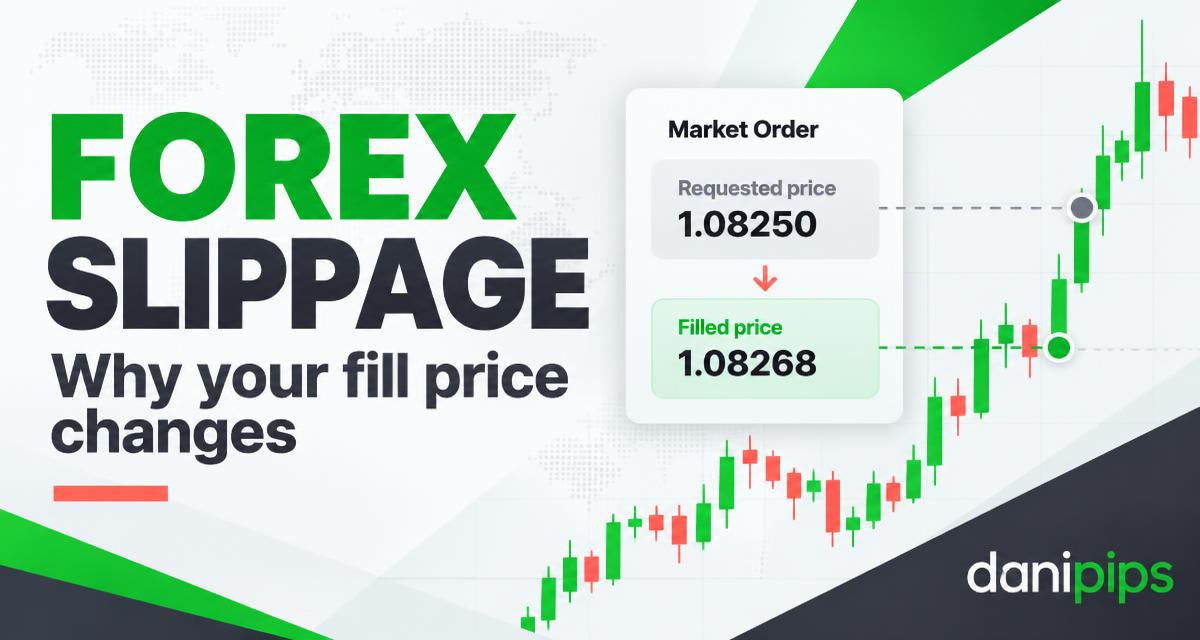
Also notice something small but important: the moment you open a trade, you are slightly negative. That is the spread. Read Forex Spreads Explained so you understand why, and why it matters far more if you plan to take many small trades.
Step 6 — Turn the demo into actual practice
Opening the account is easy. Using it properly is where beginners fail, because there is no consequence and so no discipline. Give yourself rules:
- Trade one setup only. One pair, one timeframe combination, one entry condition. Write it down before the first trade.
- Take 30 to 50 trades. Fewer than that tells you nothing about whether your idea has an edge; it is mostly noise.
- Risk the same amount every time. Same percentage, every trade. If you cannot keep the size constant, you are not ready for live money.
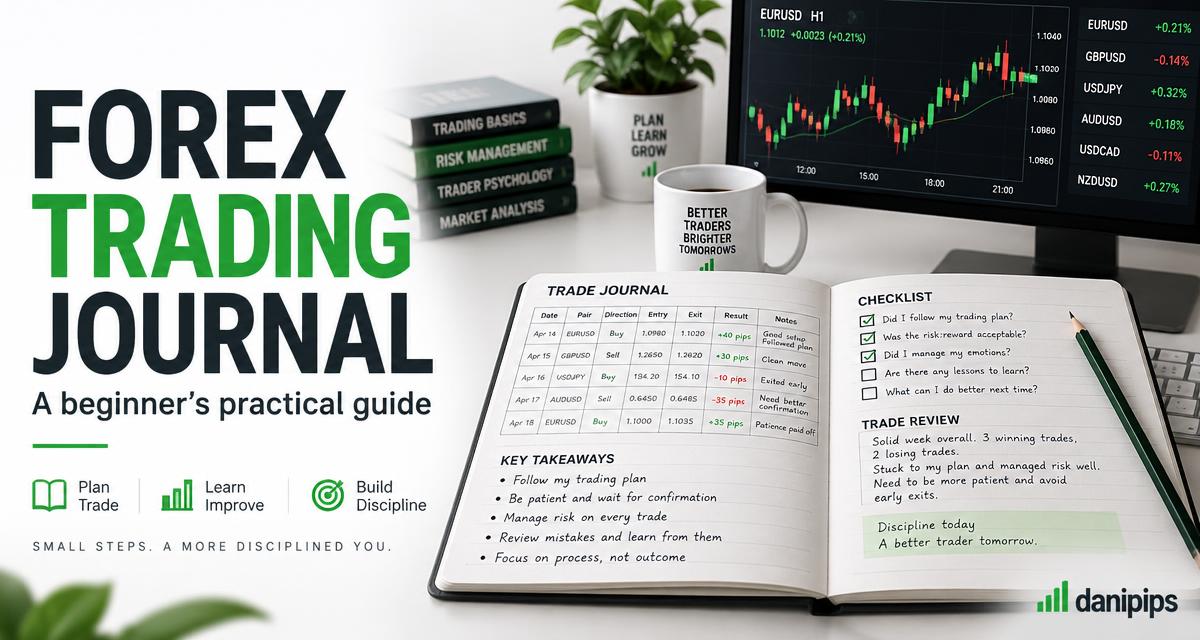
- Journal every trade. Entry, stop, target, reason, result, and one line about what you felt. Without this, 50 trades teach you about as much as 5.
- Do not restart the balance. When a demo balance is blown, the instinct is to reset it and forget. Instead, record how you got there — that sequence of decisions is the most valuable thing the demo can show you.
- Practise at one session. London or New York, the same window each day. Best Time to Trade Forex covers how session timing changes what you see.
When the numbers hold up over dozens of trades, that is the moment to think about a live account — and only with money you can afford to lose. Demo vs Live: When Are You Actually Ready to Go Live gives you a checklist for that decision.
What a demo account will not teach you
Be honest about the limits, because this is where demo practice quietly misleads people:
- Emotion. Losing virtual money produces no sweat. Losing rent money changes how you click. Many traders who are calm on demo become impulsive the first week live.
- Execution. Live fills can slip, spreads widen around news, and heavy-traffic moments behave differently from a quiet demo server.
- The money itself. Depositing, withdrawing, currency conversion and verification friction are real parts of trading that no demo touches. Exness Deposit & Withdrawal Guide covers that side.
- Consistency under pressure. Demo tempts you to skip the stop "just this once," because nothing happens. On a live account, that habit is expensive.
A demo account is a rehearsal, not a proof.
Common beginner mistakes on demo
- Treating it as a game and restarting the balance whenever it drops
- Trading five pairs at once with no written plan
- Using the maximum leverage because it is available
- Never setting a stop loss, because it does not hurt to be wrong
- Moving the stop loss further away as price approaches it
- Skipping the journal because "I'll remember it"
- Jumping straight to a live account after three lucky trades
Every one of those is free to fix on a demo account. On a live one, each costs money.
Frequently asked questions
Do I need to pay or deposit to open a demo account?
No. A demo account is free and does not require a deposit or a card. If you are ever asked to fund an account just to practise, close the tab and question the broker.
Do I need to verify my identity for a demo?
No. Identity documents are part of opening a live account, not a demo one.
Do demo prices match the real market?
They track live prices closely, but execution conditions differ — fills and spreads on a demo are usually more favourable than what you will get with real money.
Is a demo account unlimited in time?
Policies vary and change. Check what the platform shows in your own Personal Area rather than relying on a screenshot or a forum post.
Which platform should a beginner choose?
Either MetaTrader works. MetaTrader 5 is newer with more tools; MetaTrader 4 is simpler and better documented in free tutorials. Pick one and stop comparing.
How long should I stay on demo?
Until 30–50 trades of one written setup show a consistent process — not until you feel confident. Confidence is a feeling, and feelings are unreliable in trading.
Can I lose real money on a demo account?
No. Nothing is at risk, which is exactly why it is the right place to make your first mistakes.
Your next step
Open the demo today, spend fifteen minutes on the setup, and place one trade with a stop loss before the day ends. Then write down what happened.
- Open a free Exness demo account — no deposit required
- Start the free Danipips academy course — the fundamentals, in order
- Calculate your position size — before every trade, not after
Exness is the broker we recommend and use in our examples, and this page contains our referral link. That does not make trading suitable for you — decide on your own terms, practise first, and never risk money you cannot afford to lose.